How to use 囍 Big Day
Every screen, from creating the wedding to the day itself, and what each button does. Pictures are from the iPhone; the Android app has the same screens and features.
1Getting started
The couple creates a wedding, then invites planners, the bridal party and guests with codes. There are no accounts and no email.
Create, or join?
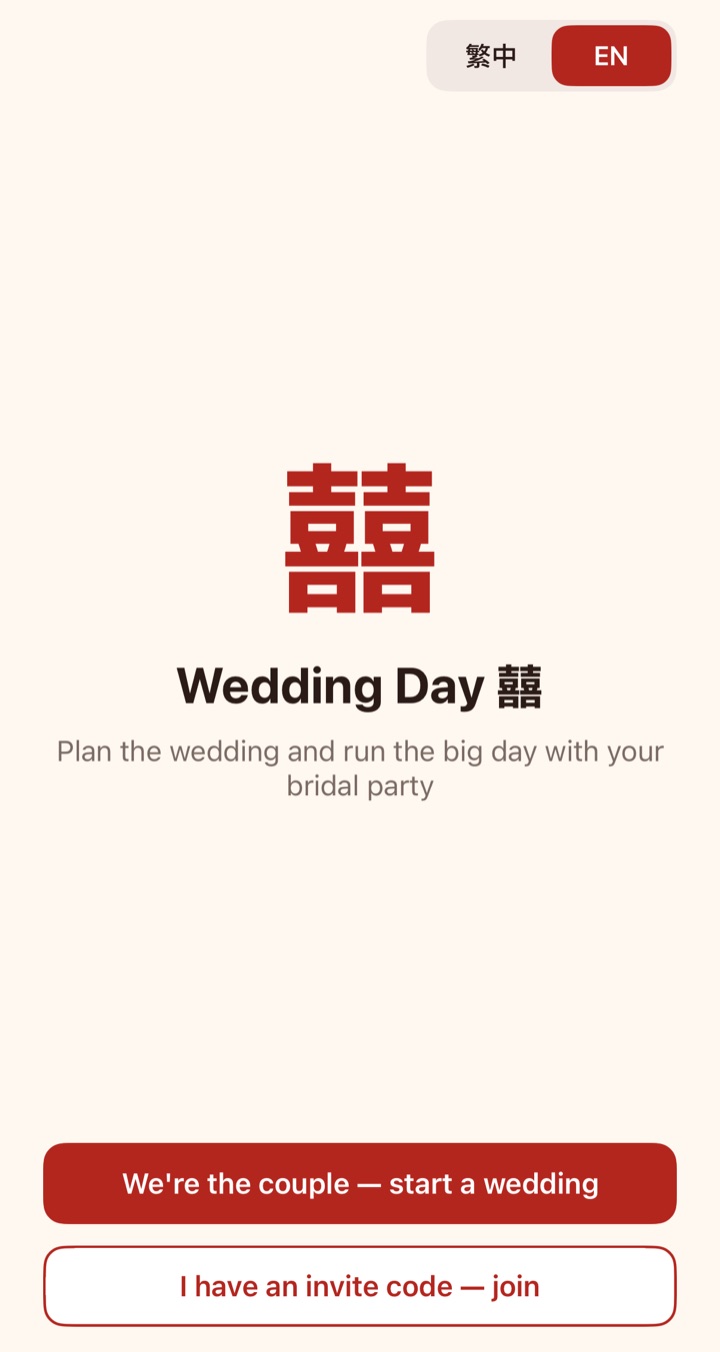
The couple taps “We’re the couple — start a wedding”. Planners, the bridal party and guests tap “I have an invite code — join”. You can switch language (繁中 / English) here, and later in Settings.
Start from a plan
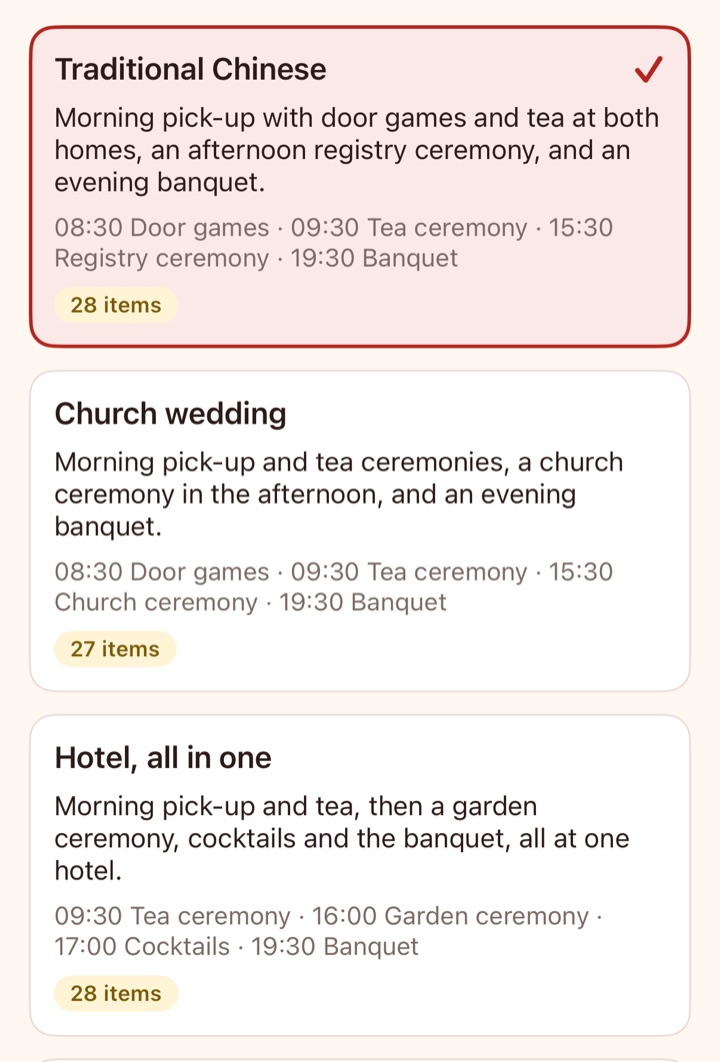
Enter your name, the couple’s names and the date, then pick a plan: traditional Chinese, church, hotel, lunch or simple. It fills in a whole run sheet and checklist for you to change as you like.
- To start again, choose “Start over from a plan” from the Run sheet’s menu.
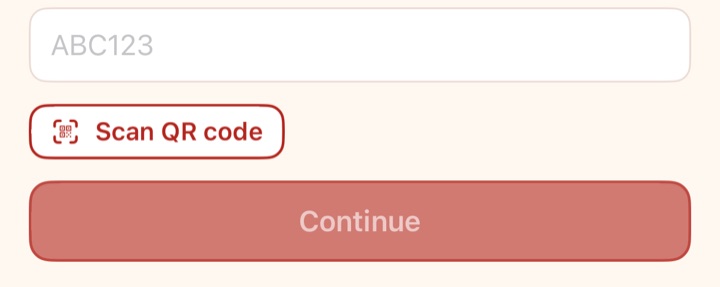
Type or scan a code
Type the code you were given, or tap “Scan QR code” and point at the other phone. Bridal party codes, planner codes, guest invitation codes and “Add a phone” codes all go here.
- Codes work once the couple has paid for the wedding.
Claim your spot
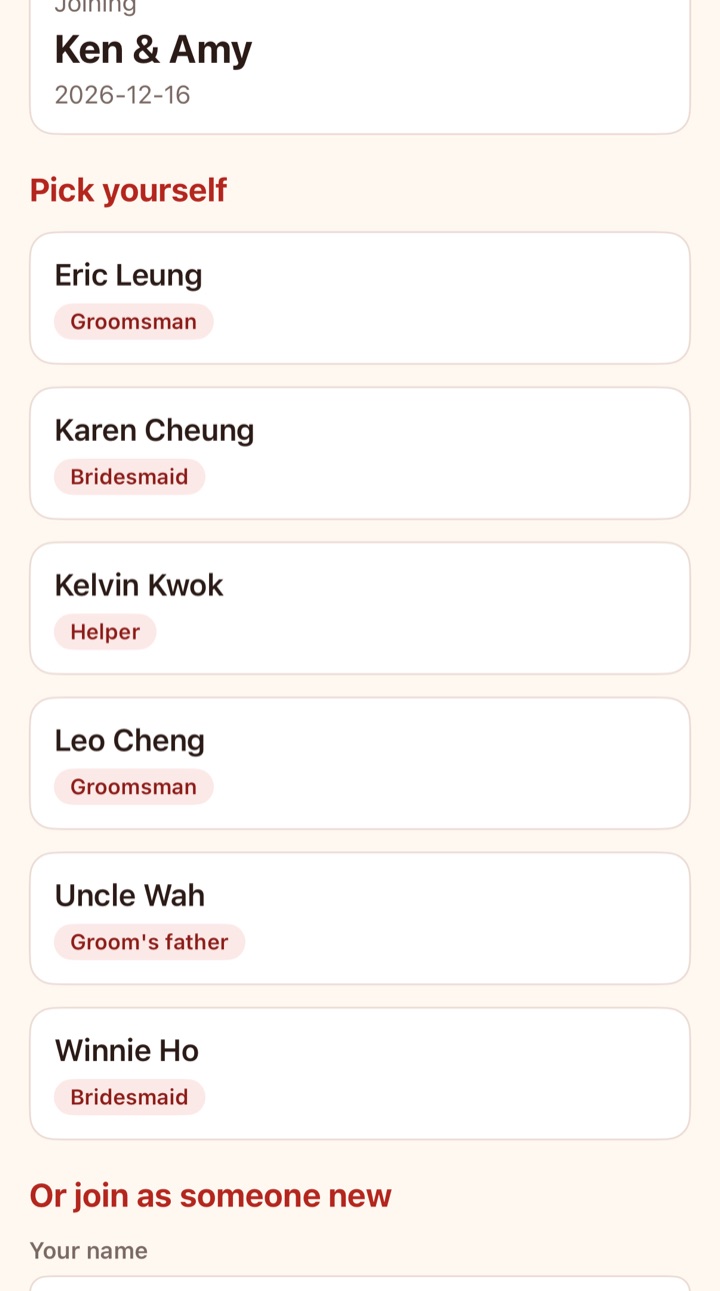
If the couple already added you, tap your name to join as that person. If not, enter your name, phone and role to join as someone new.
2Run sheet
Every item of the day from morning to night: when, where and who. Everyone sees the same run sheet, and changes show up straight away.
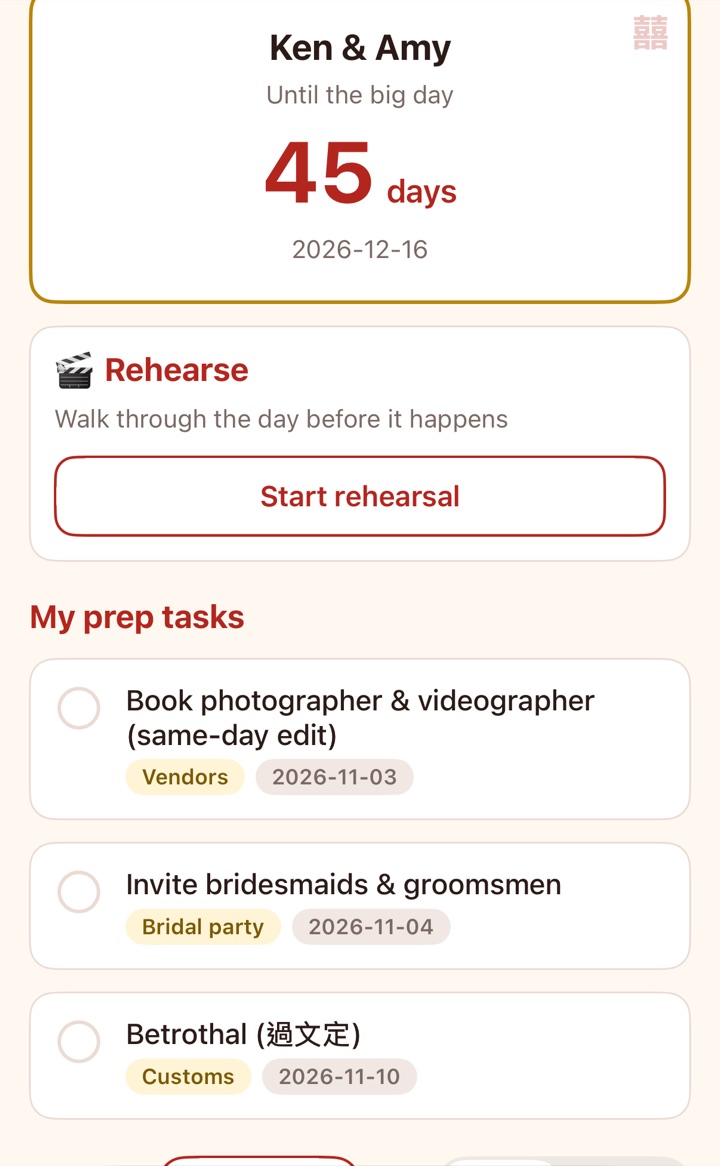
Countdown and your tasks
At the top: how many days to go. Under it, “My prep tasks” lists the tasks given to you — tick them here or tap one for details. It’s hidden when you have none.
See just what’s yours
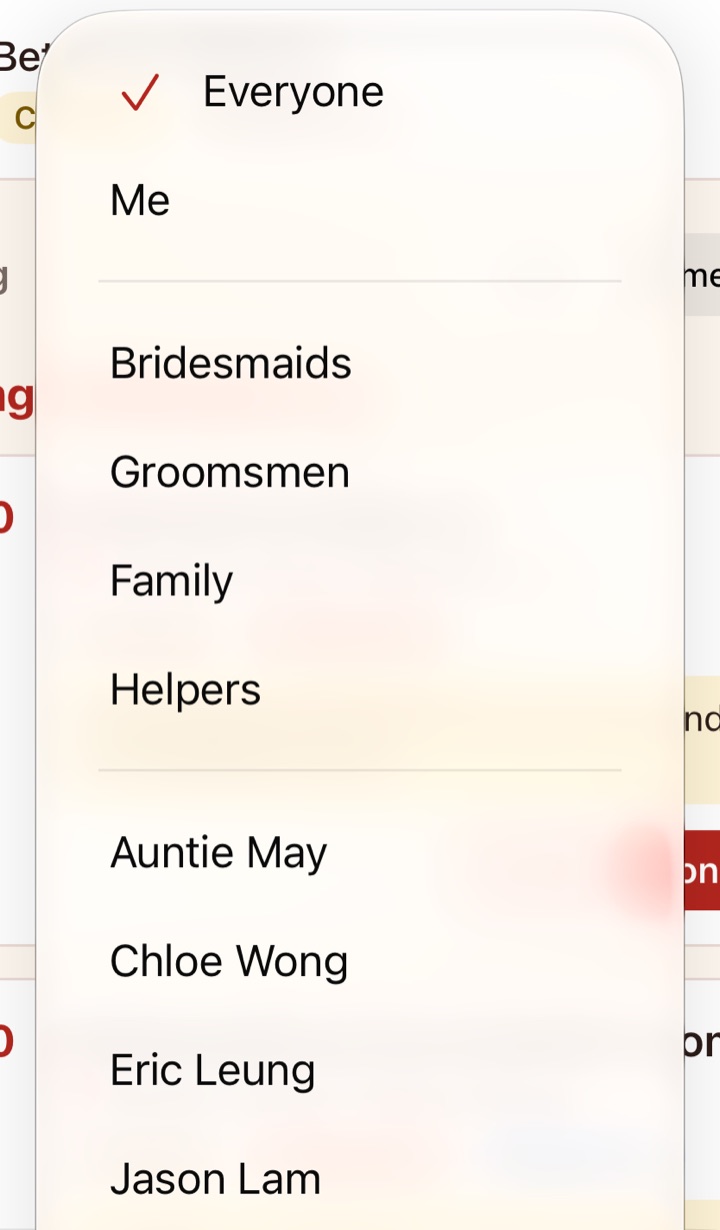
Tap “Showing” to choose: Everyone, Me, a group (bridesmaids, groomsmen, family, helpers) or one person. The bridal party starts on “Me”, the couple and planners on “Everyone”; the app remembers your choice for each wedding.
Reading an item
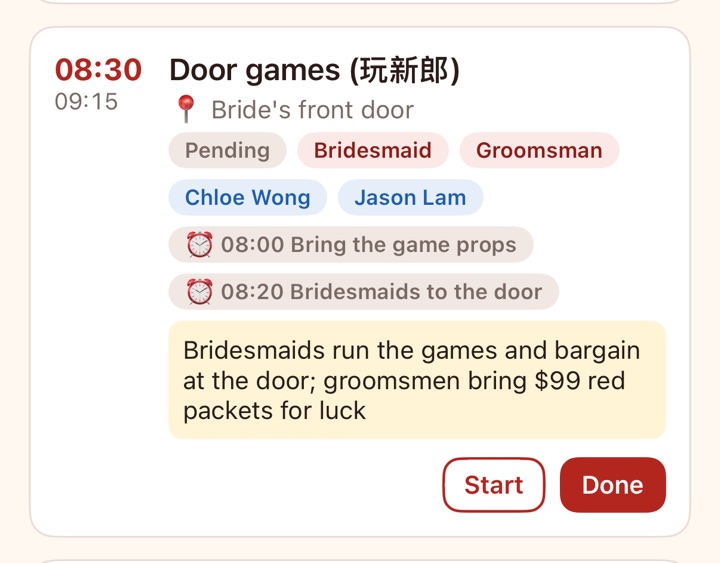
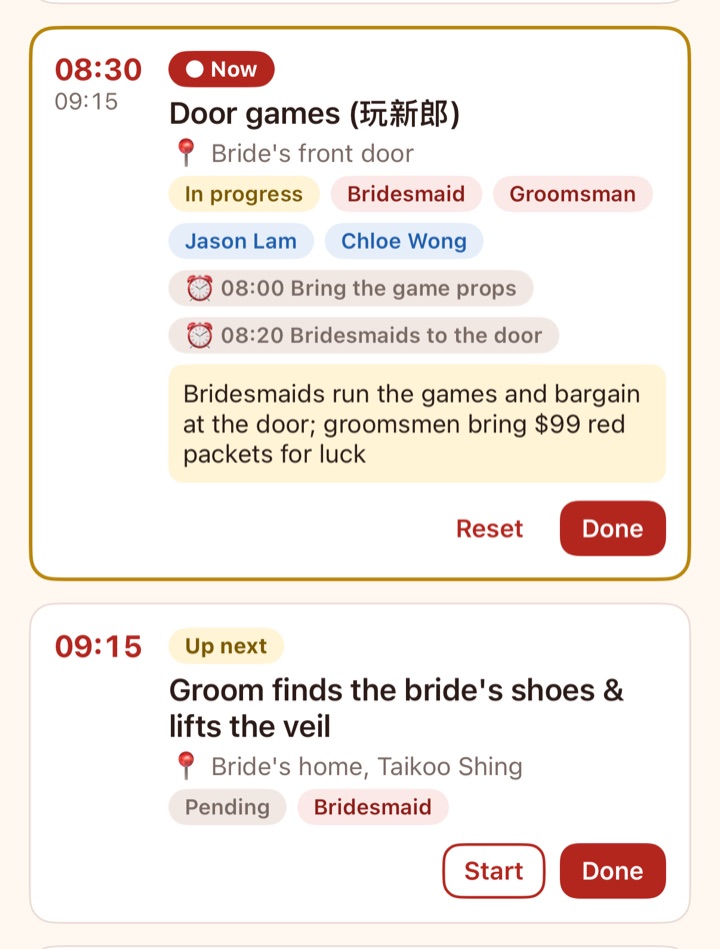
Its time, title and 📍 place, then badges: status, the groups and people on it, ⏰ alarms (gold when they ring on your phone) and “Couple only” when it isn’t shared with the bridal party. Notes sit in the highlighted box.
- The people on it tap “Start” and “Done”, and everyone sees the progress; “Reset” undoes a mistake.
- Starting an item notifies the couple and the people on it: “Now: Tea ceremony”.
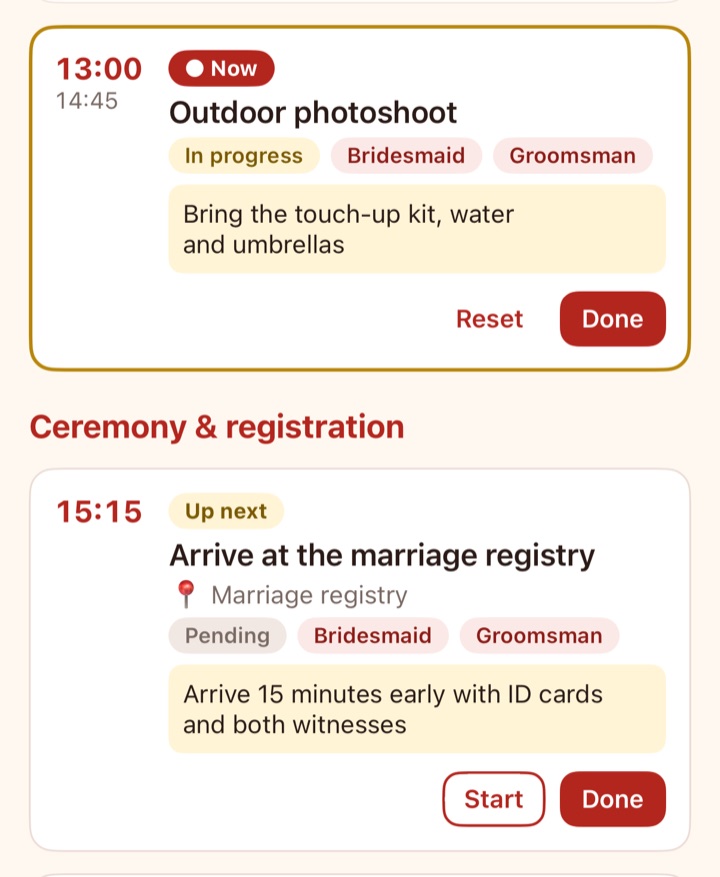
On the day: Now and Up next
On the wedding day the item under way is marked “Now” and the one after it “Up next”, and the app opens scrolled to what’s happening now.
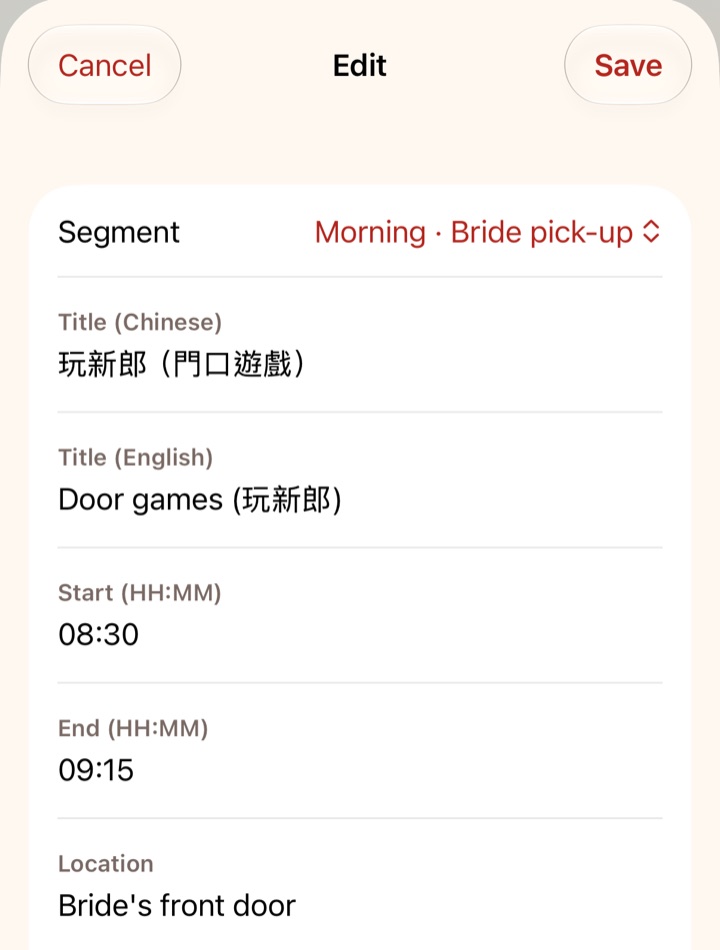
Adding or editing an item (couple and planners)
Tap an item to edit it, or “+” to add one: the part of the day (morning, daytime, ceremony, banquet), start and end time, the title in Chinese and English, place and notes. One language is enough; the other falls back to it.
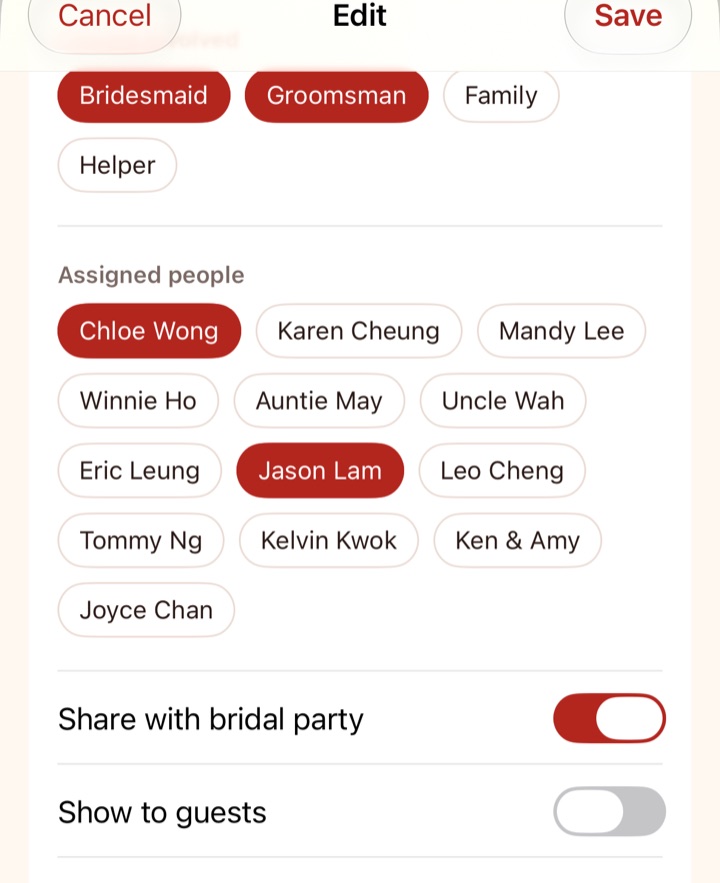
Who’s on it, who sees it
Choose the people and groups on it. With “Share with the bridal party” off, only the couple and planners see it. “Show to guests” puts its time and title on the guests’ invitations (for reception and dinner, say).
Alarms
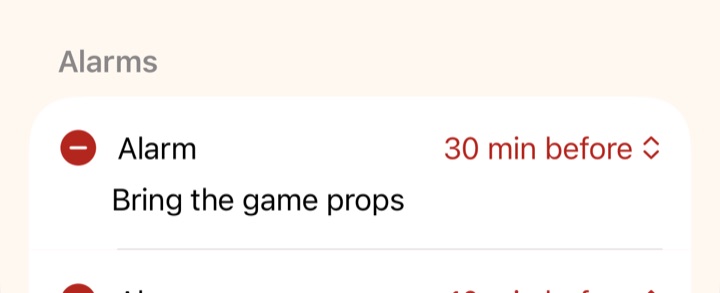
Add up to 10 alarms to an item: at the start, or 5, 10, 15, 30 or 60 minutes before, each with an optional note (“Call the make-up artist”). They ring only on the phones of the people on the item, even when locked.
- Set the wedding date in Settings first.
- Move the start time and its alarms move with it.
Timeline
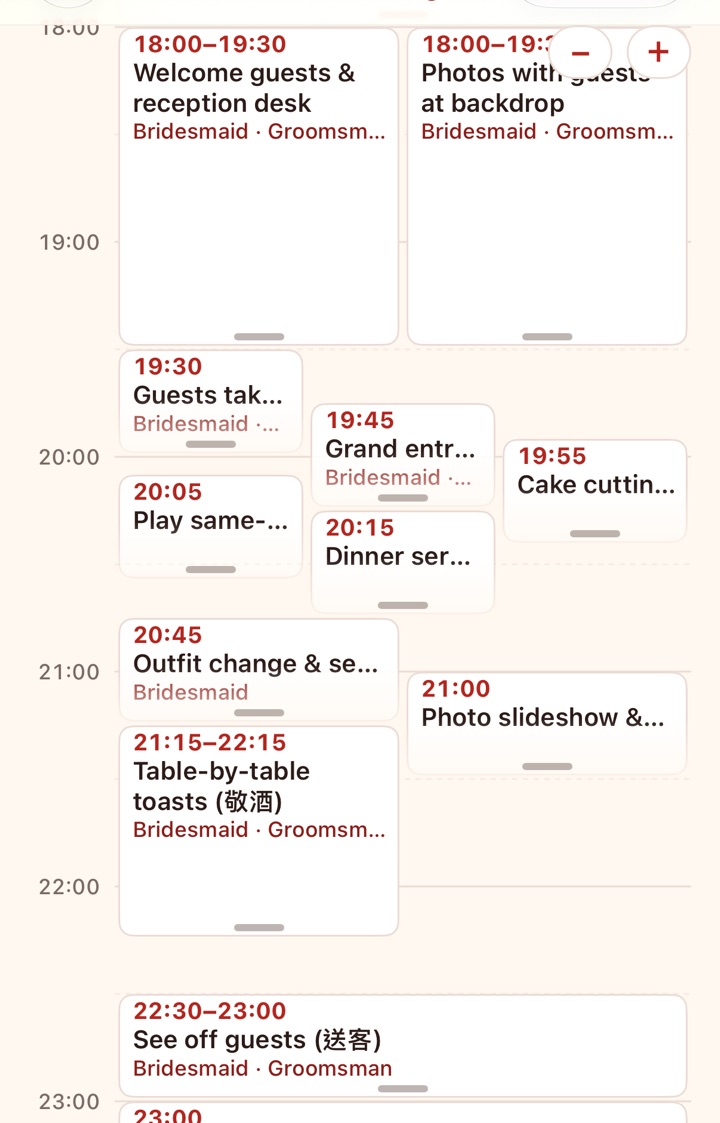
Switch to “Timeline” next to the filter: each item becomes a block as tall as it lasts, and items at the same time sit side by side. Pinch, or tap “−” / “+” at the top right, to zoom in as far as 15-minute steps.
Drag to reschedule
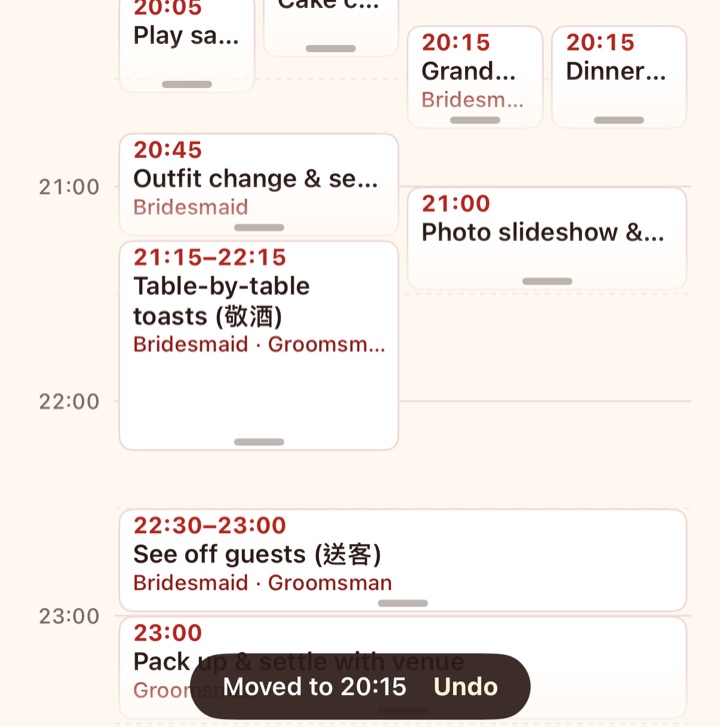
The couple and planners long-press a block and drag it up or down in 5-minute steps; drag the handle at its bottom to change when it ends. Letting go saves it and shows “Moved to 10:30” with “Undo”. Only that item moves; later ones stay put.
3Alarms and notifications
Alarms are set on your own phone and ring without a connection; notifications come from the server.
Test it
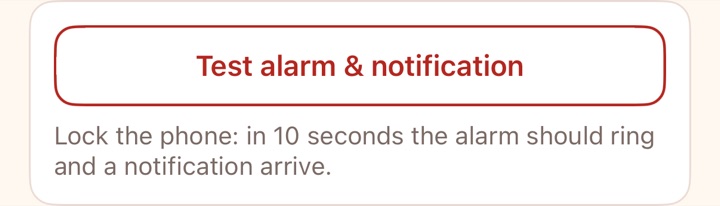
Settings → “Test alarm & notification”. Lock the phone: within 10 seconds an alarm should ring and a notification arrive. If not, follow the hint to turn the permissions on. Best if everyone tries it before the day.
- You’re notified when an item starts, a shared item’s time or place changes, someone gives you a task, someone joins with a code (couple and planners) or a guest replies (couple and planners).
- Tapping a notification opens the right tab, switching wedding first if you’re in several.
4Rehearsal
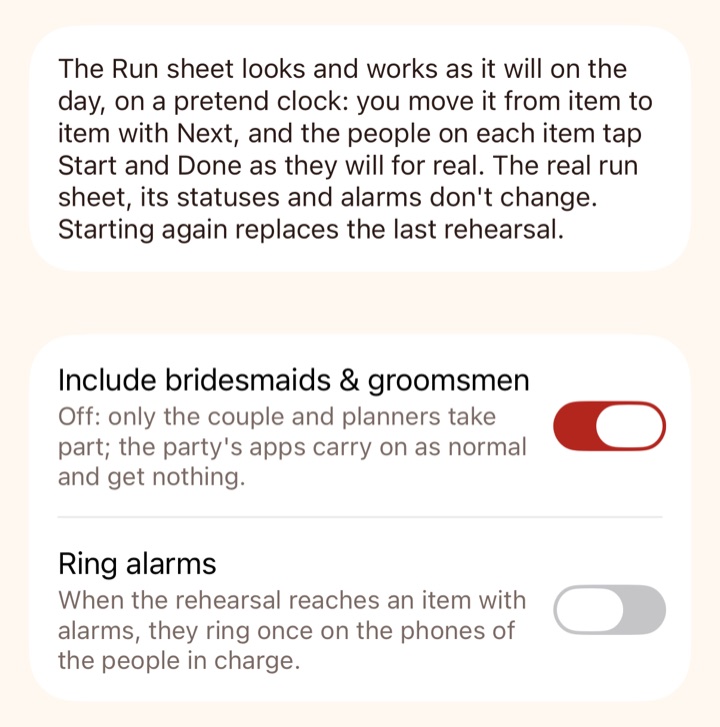
Before the day, walk through the run sheet on a pretend clock. It never changes the real run sheet, its statuses or alarms.
Starting
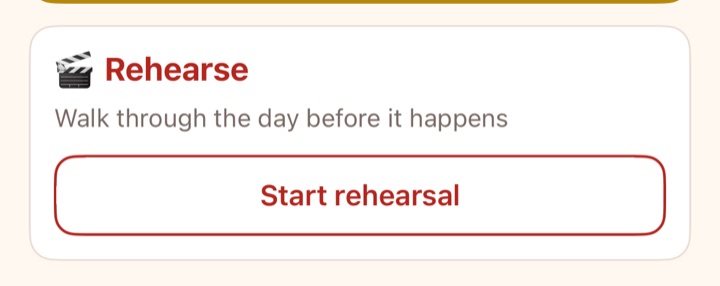
The couple and planners see the “Rehearse” card under the countdown; tap “Start rehearsal”.
Who takes part
Turn off “Include bridesmaids & groomsmen” to rehearse with just the couple and planners. With “Ring alarms” on, each item’s alarms ring once on the phones of the people on it. Everyone taking part gets “Rehearsal starting 🎬”.
Step through it
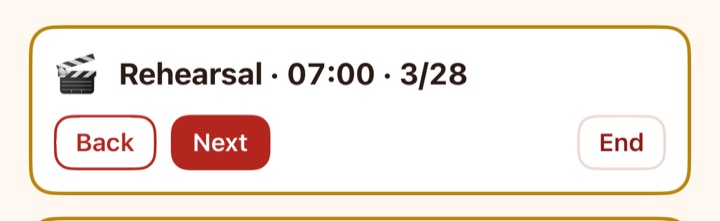
A bar shows “Rehearsal · 10:30 · 2/12”. The run sheet marks Now and Up next as on the day, and everyone practises Start and Done. The couple and planners move on with “Back” and “Next”; “End”, or Next on the last item, finishes it.
5Album and files
Everyone’s photos and videos in one album; quotes, contracts and maps stay with their task or run sheet item.
The album
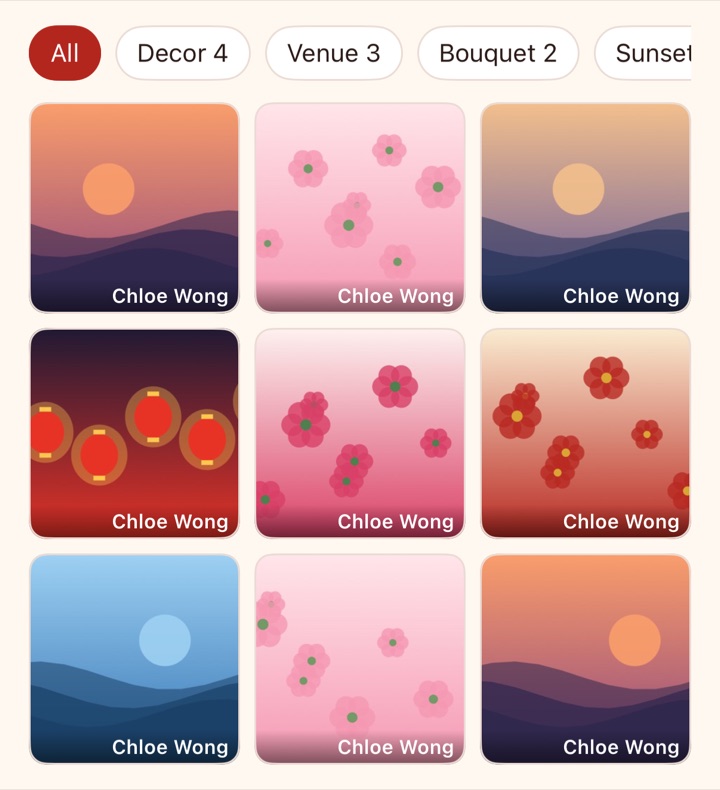
The Album tab, newest first, with who added each. Tap “+” to add several photos or videos at once. Tap a tag above the grid (“Tea ceremony 12”) to see only those.
Viewing and tagging
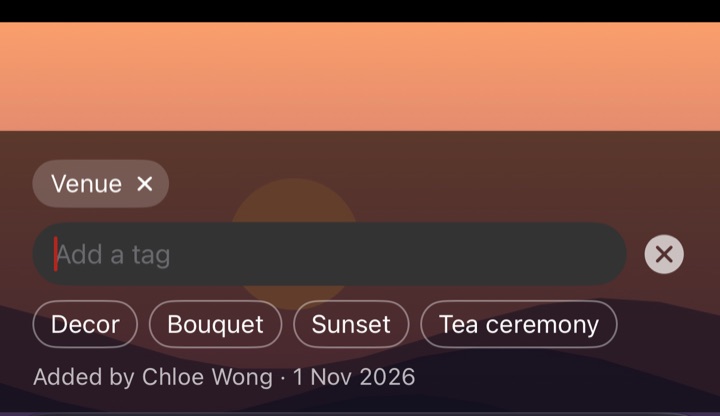
Tap a photo to view it full screen; swipe for the next, zoom, share, save or add a caption. Under it, ✕ removes a tag; next to “+ Tag” are the album’s tags — tap one to add it, no typing.
Files on items
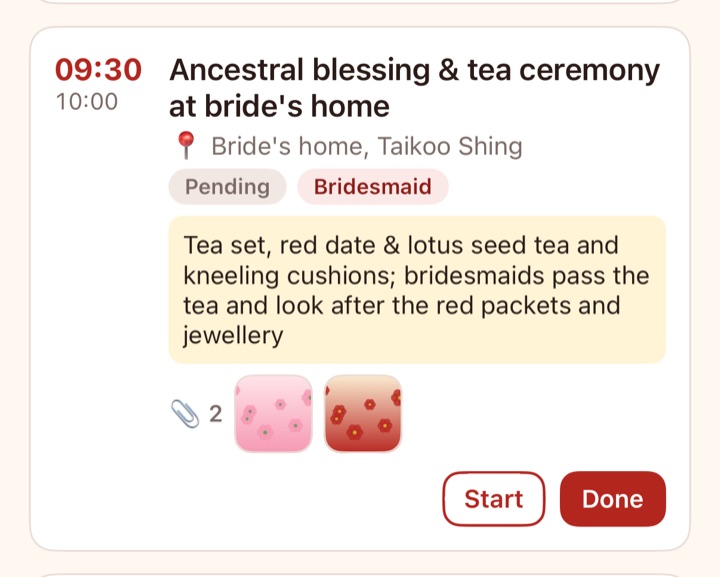
Run sheet items, checklist tasks and providers can hold photos and files (PDFs or anything else). A run sheet card shows 📎 and a strip of previews; tap one to open it.
- Files count towards the wedding’s space (1, 5 or 20 GB).
6Bridal party
Everyone taking part, grouped by role.
Invite codes
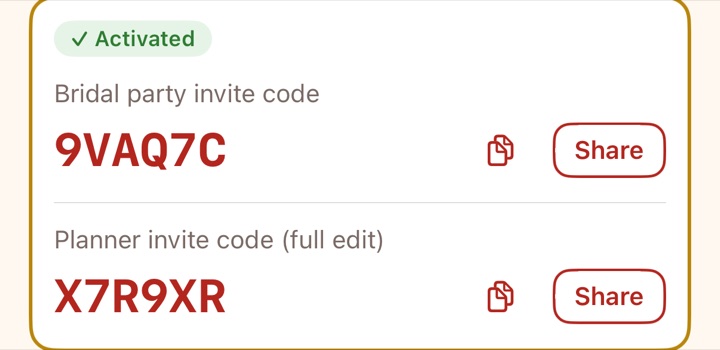
The couple and planners see two codes: the bridal party code and the planner code, to copy or share. People who join with the planner code can change everything, so give it only to those you trust.
- Code leaked? “Regenerate invite codes” in Settings stops the old ones working.
Members
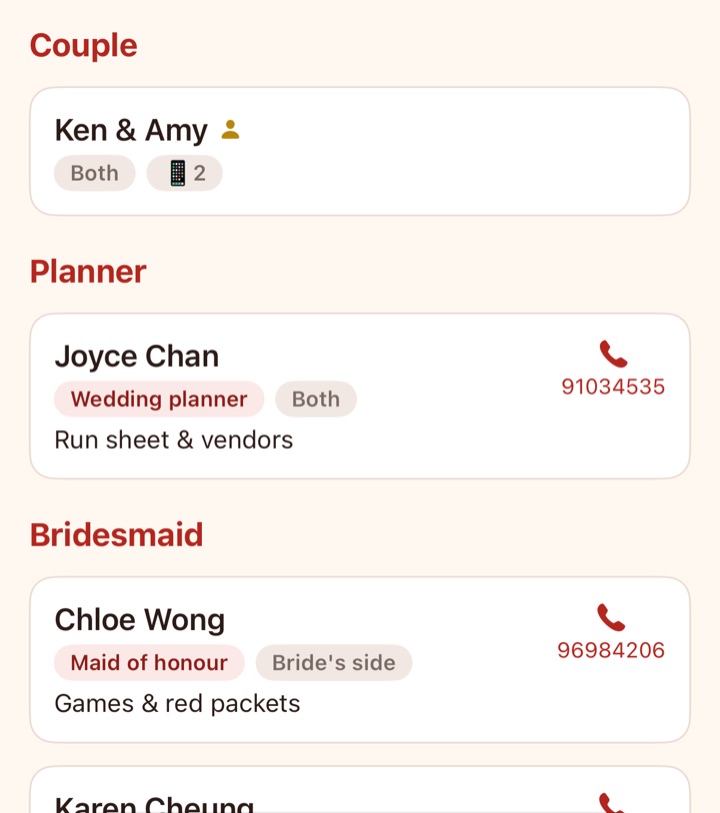
Each person’s name, title, side, duties and phone (tap to call). “Not joined yet” means the couple added them but they haven’t claimed the spot; “📱2” means they use two phones.
Adding or editing someone
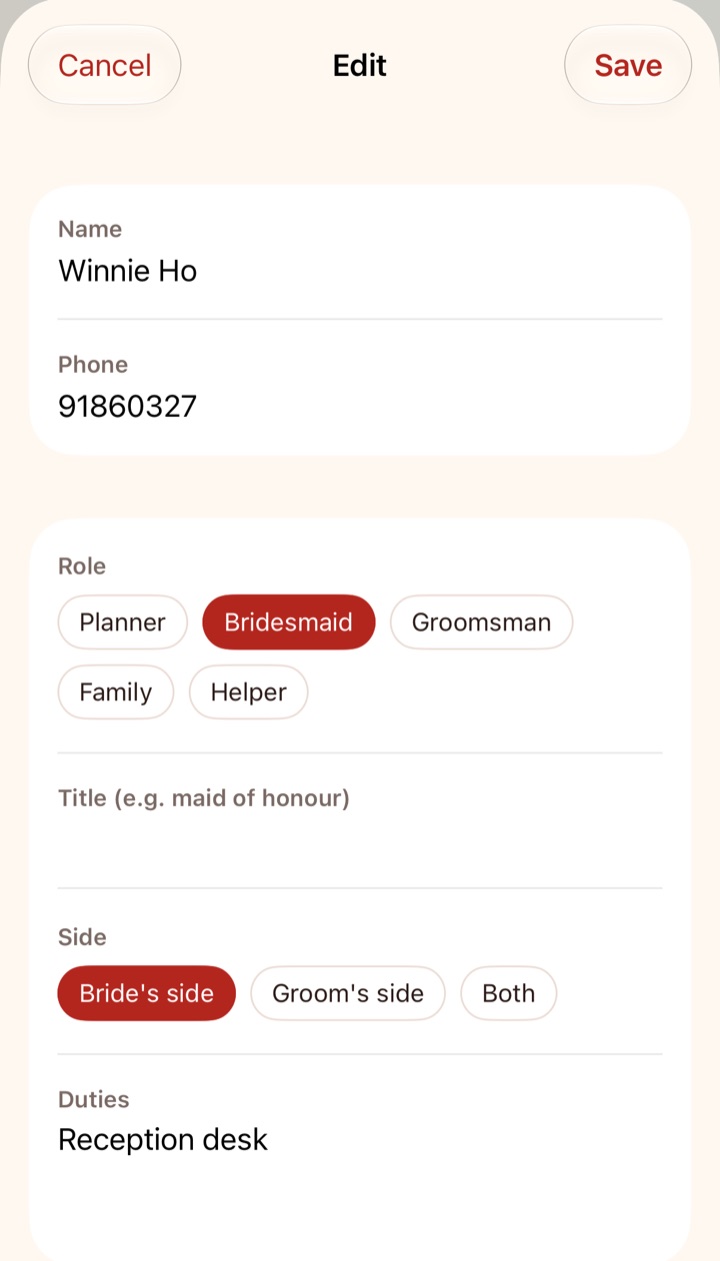
The couple and planners can add people ahead of time (they claim the spot with the code later), change roles and duties, or remove them. Everyone else can edit only their own name and phone.
7Planning
For the couple and planners: the checklist, calendar, suppliers and budget.
Checklist
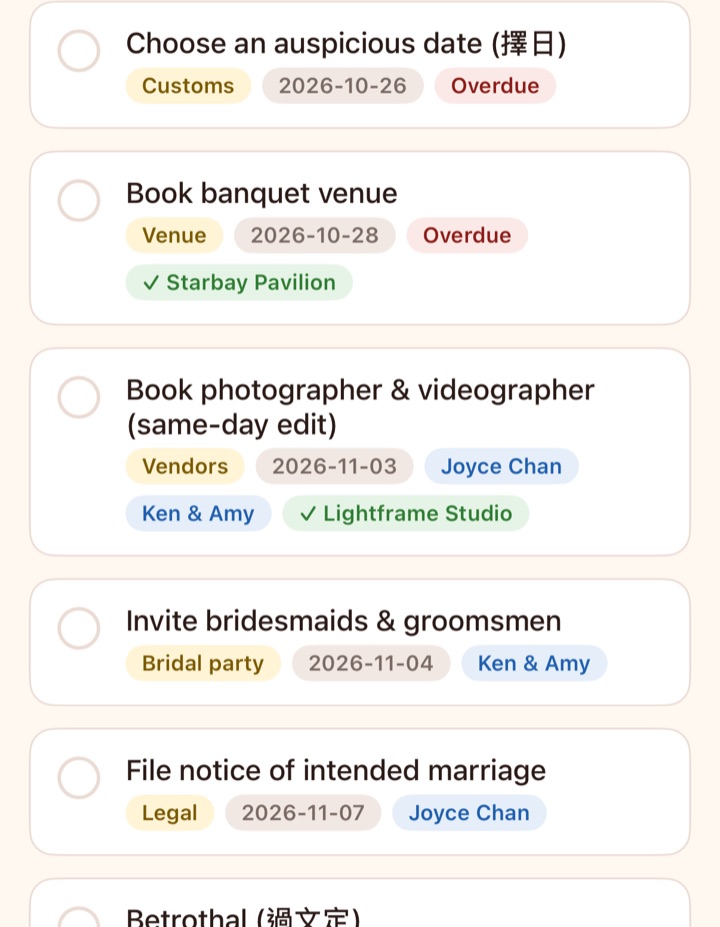
Open tasks first, by due date. Overdue ones are marked in red; each shows its category, the people on it and its suppliers (“✓” and the name once one is chosen, or “3 candidates”). Tick the circle when done; tap a task to open it.
Calendar
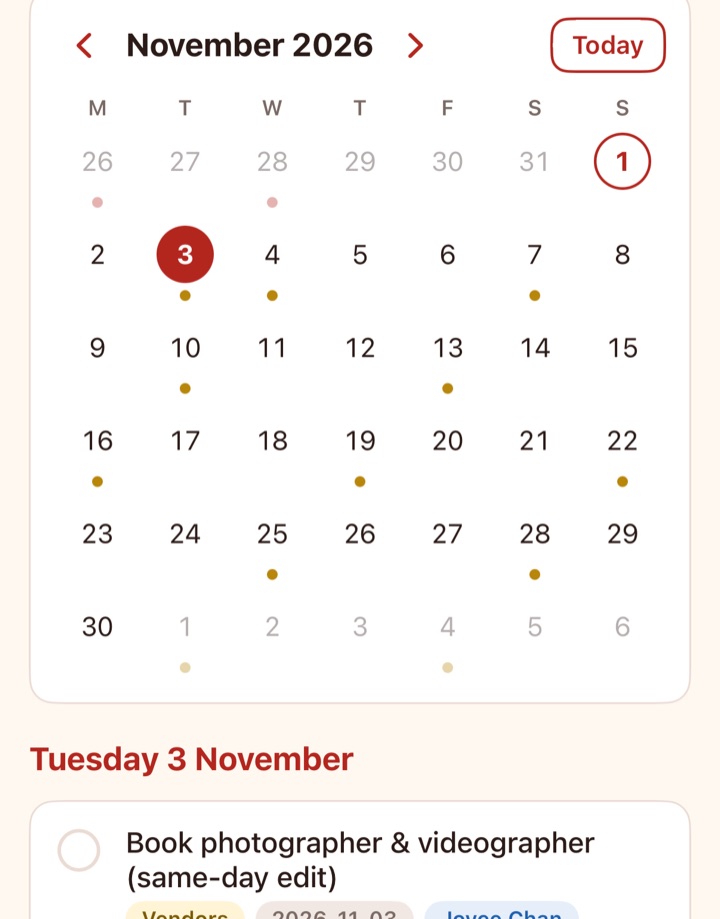
Switch to “Calendar” to see what’s due each day: red dots overdue, gold to do, grey done. Today is circled and the wedding day is marked 囍. Tap a day for its tasks; “+” adds one due that day. Tasks with no date fold into “No date”.
A task and its suppliers
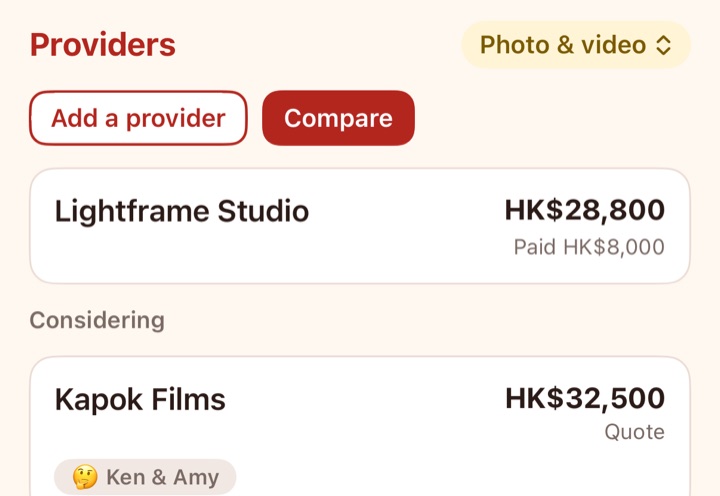
Each task can hold several suppliers: the chosen one first, then the candidates you’re considering (quote, votes, links), then the ones not chosen. “Add a provider” adds a candidate; with two or more you can “Compare”.
Compare and vote
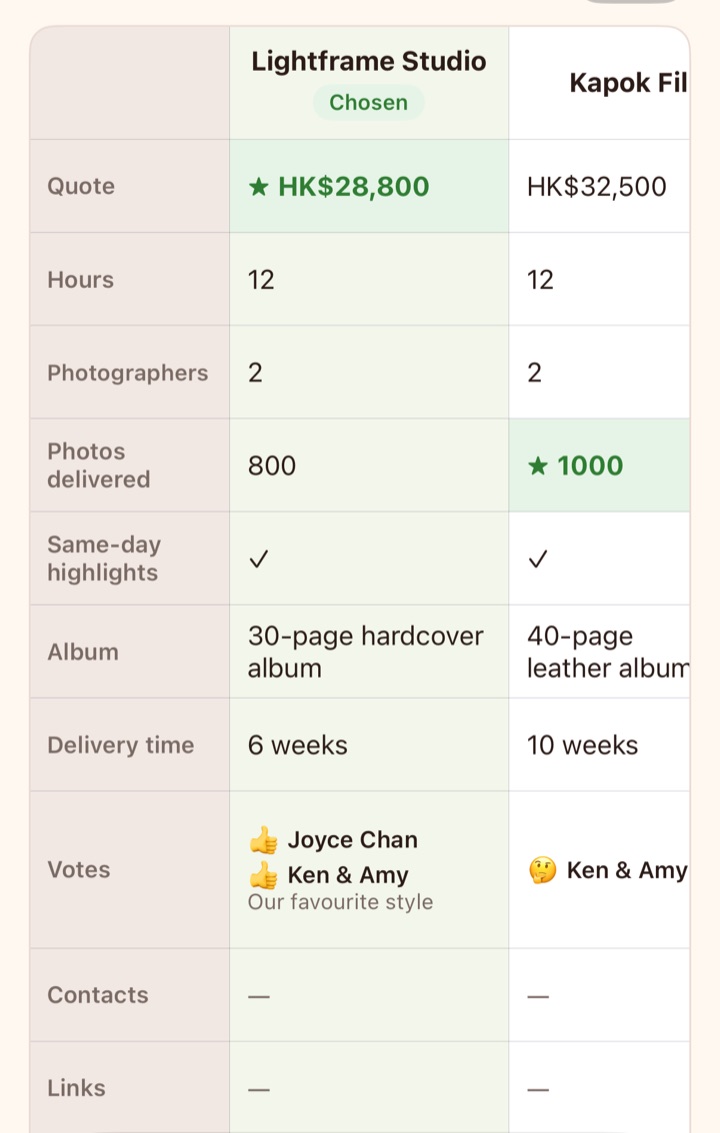
One column per supplier, one row per criterion — quote, price per table, number of photos — with the best value starred in green. Each of you votes 👍🤔👎 with a comment. Tap “Choose” under the winner; the other candidates become “not chosen”.
- “Edit criteria” adds your own rows and sets whether lower or higher is better.
Budget
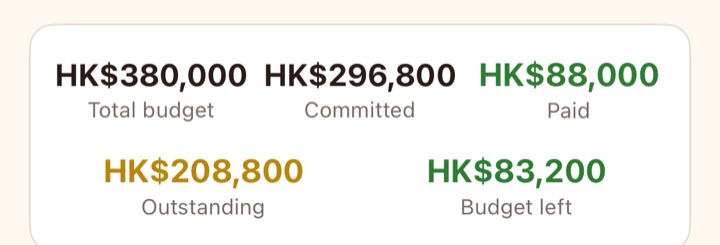
“Budget & vendors”: the total budget, committed, paid, outstanding and what’s left — counting chosen suppliers only — then each chosen supplier.
8Guests
For the couple and planners: the guest list, tables, menu and invitations.
Guest list
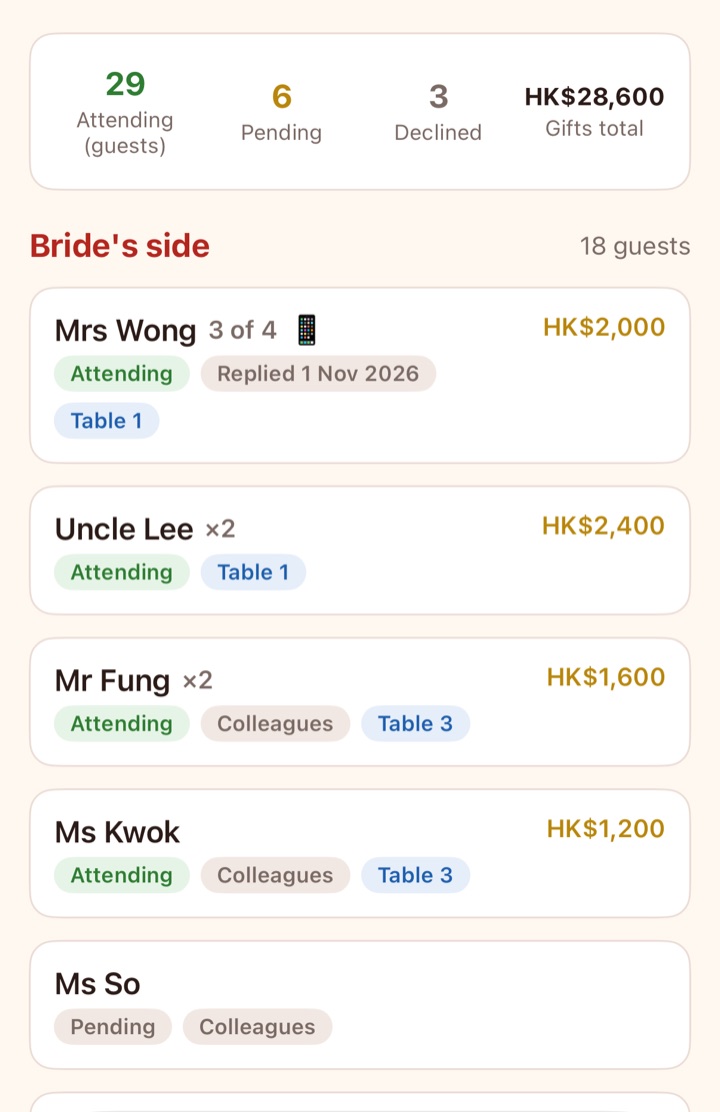
At the top: guests coming, waiting, declined and the gift total. Each guest shows their reply and table; 📱 means they’ve opened their invitation, “Replied” shows when, and “3 of 4” means 4 invited and 3 coming.
Sending an invitation
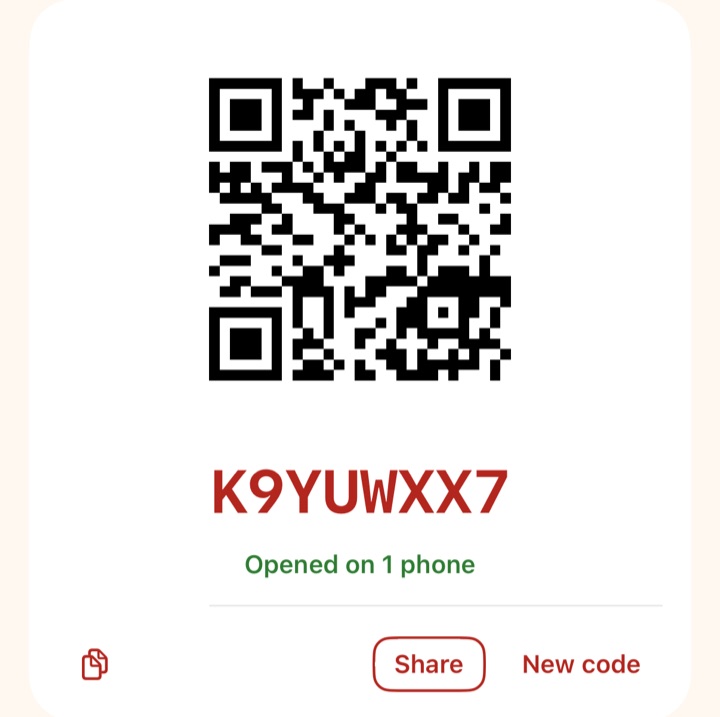
Open a guest: the “Invitation” section has their own QR code and code. “Share” sends a ready-written message by WhatsApp or anything else. One code covers the whole family, on up to 10 phones.
- “New code” signs out the phones that opened the old one.
- Guests don’t count towards the wedding’s 50 phones.
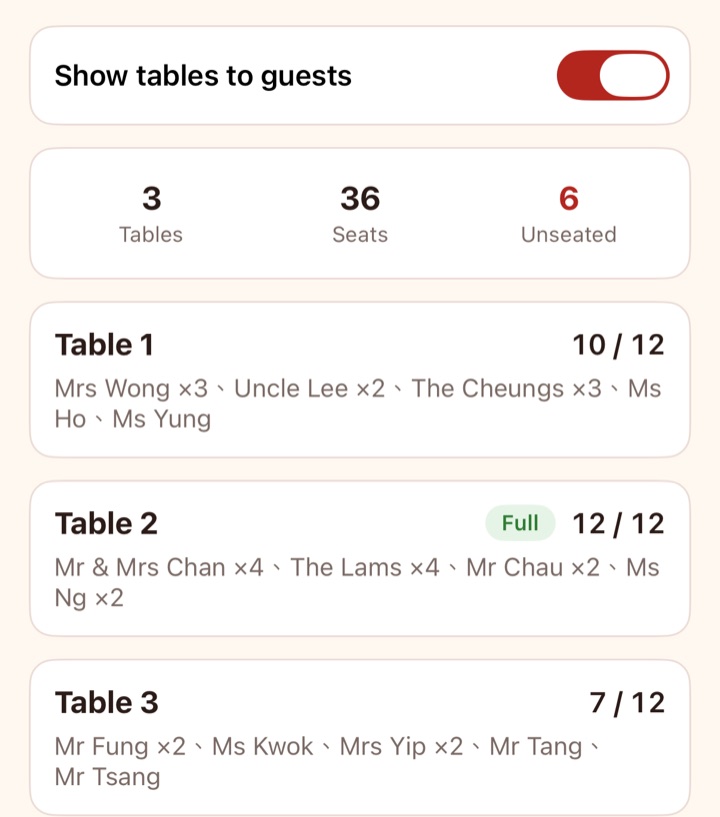
Tables
Each table shows who’s seated and how many fit (12 by default), flagged when full or over. Guests see their table only after you turn on “Show tables to guests”, so switch it on once seating is final.
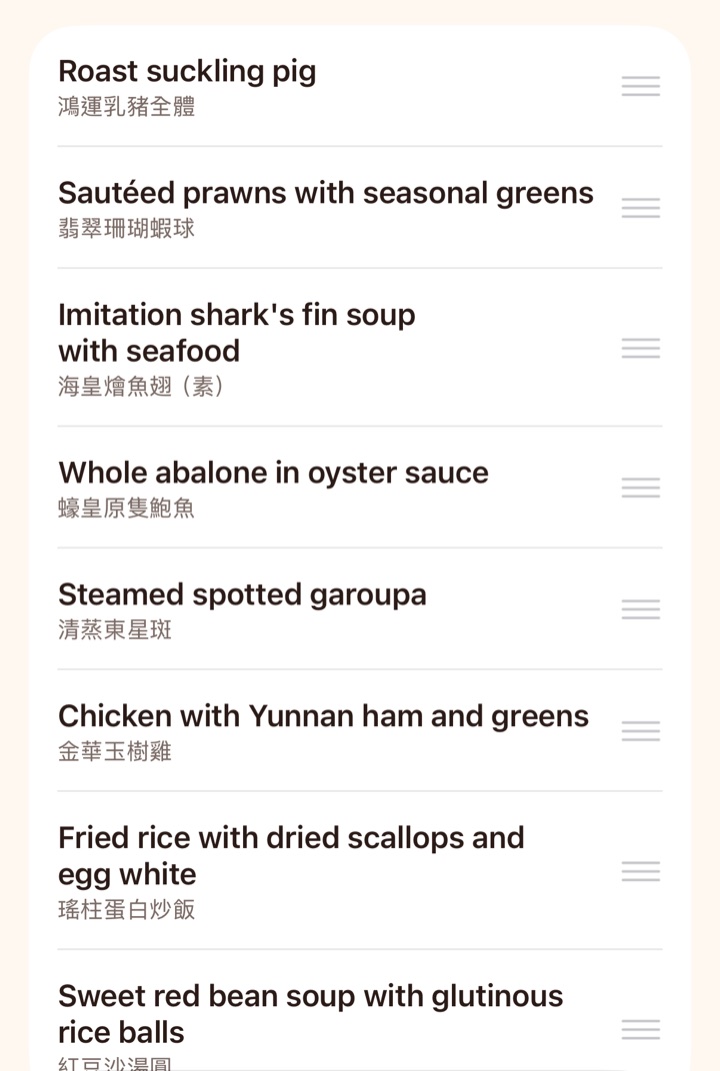
Menu
Under “Menu”, add each dish in Chinese and English and put them in order. Guests see it on their invitation.
9What guests see
A guest who joins with their code gets a single invitation page — no run sheet, party or album. It still opens without signal.
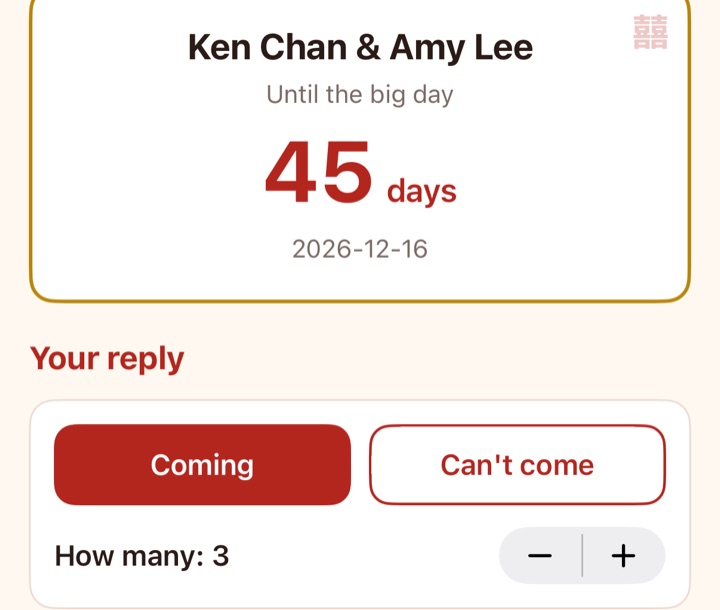
Replying
Under the couple’s names and the countdown, tap “Coming” or “Can’t come”, and how many are coming (up to the number invited). The couple is notified at once.
Your table
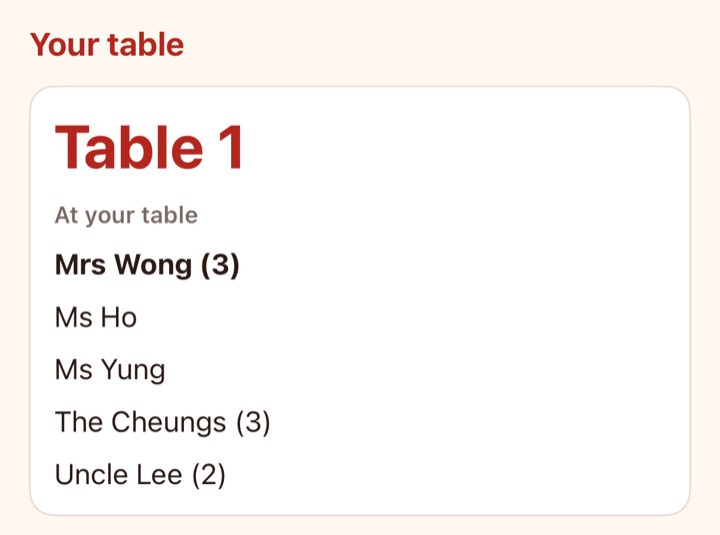
Once the couple shows the seating: your table and who else is at it. Before that, “Seating will be announced soon”.
When and where
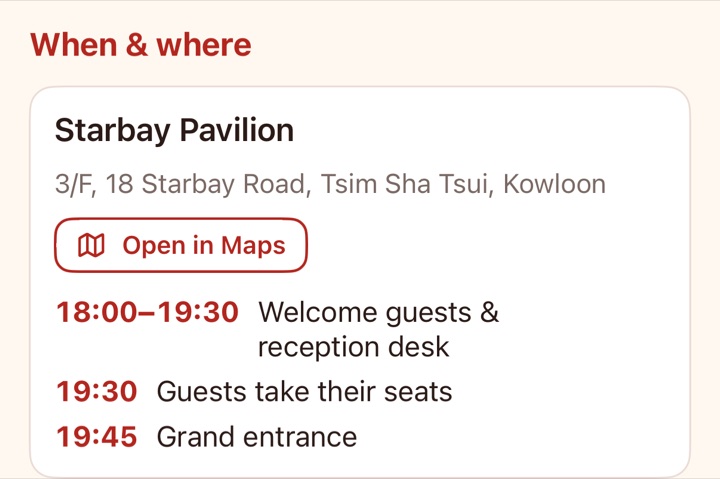
The venue, its address (“Open in Maps” for directions) and the times the couple chose to show.
Menu and message
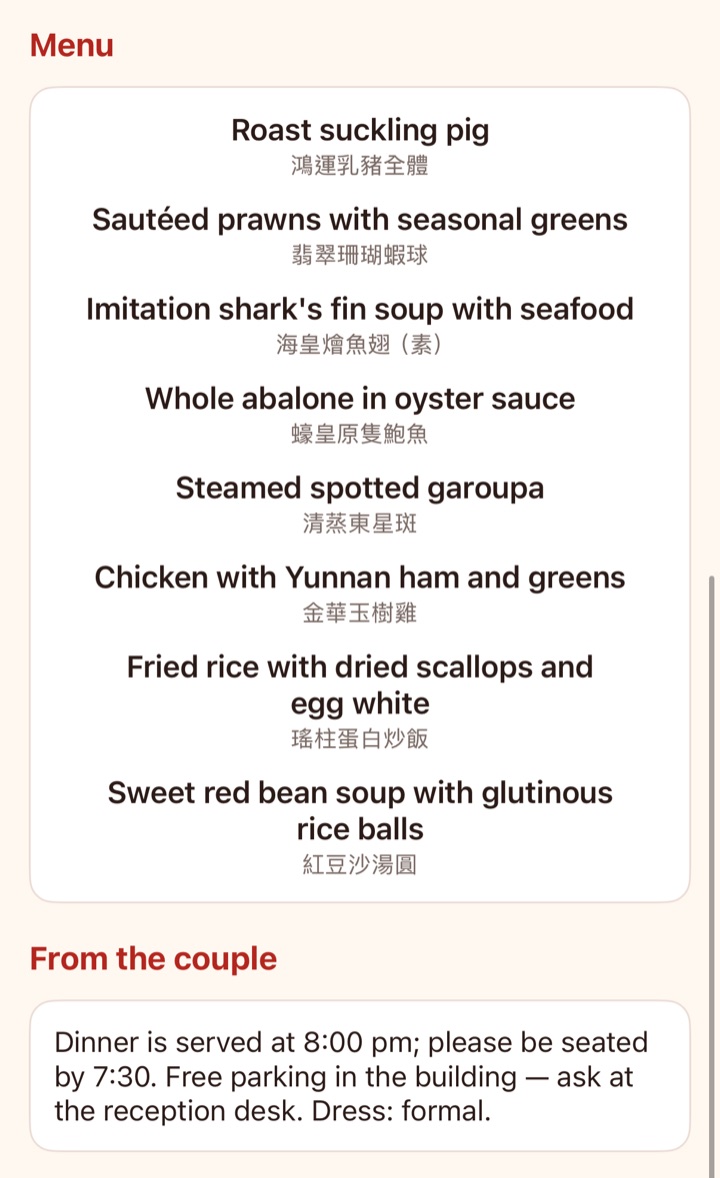
The banquet menu, and the couple’s message — dress code or parking, say.
10Settings
Open it from the gear at the top of every tab.
Wedding details
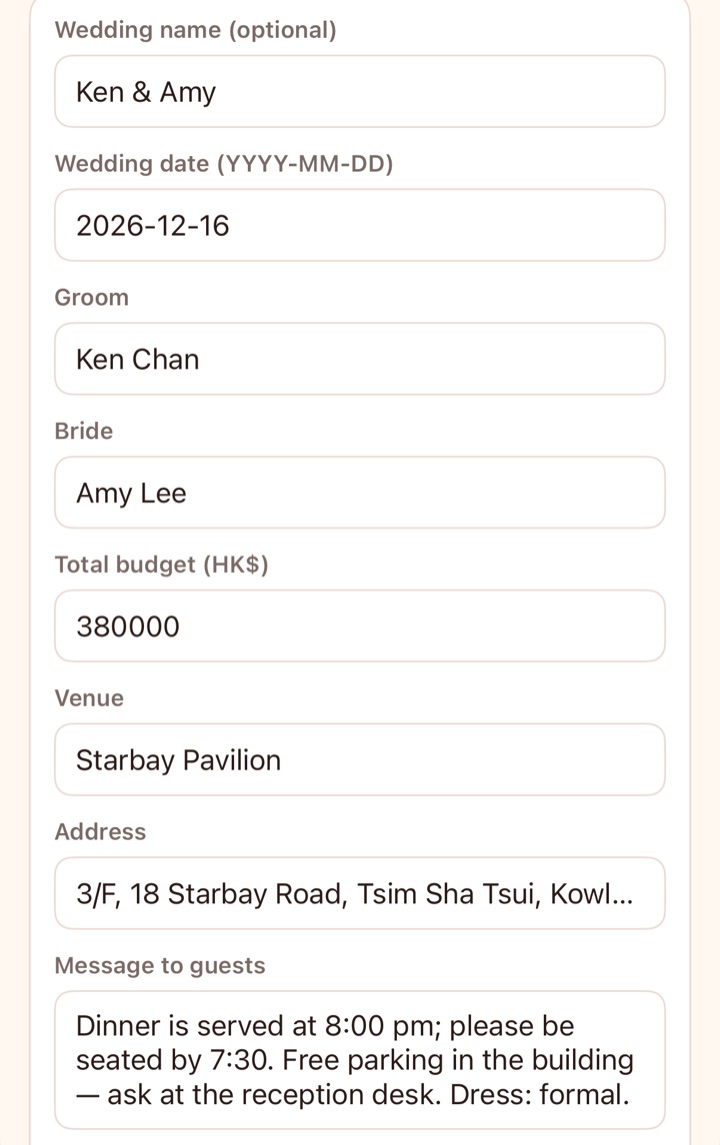
The couple and planners edit the wedding’s name, date, the couple’s names and the budget, plus the venue, address and message for guests.
My phones
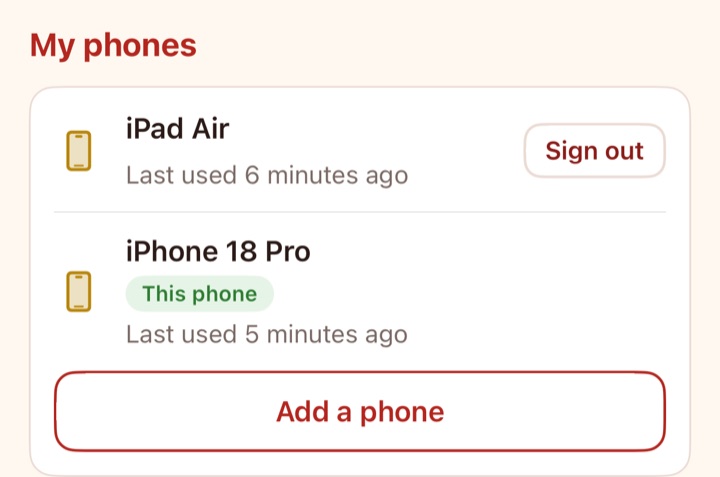
The phones you’re signed in on and when each was last used; sign others out from here.
Add a phone
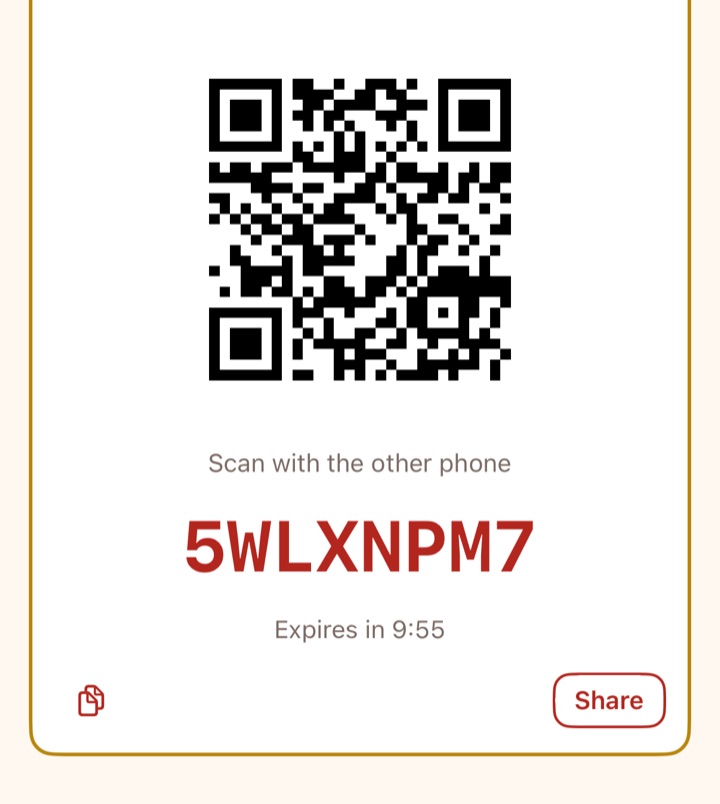
Want to use another phone, or an iPad, as yourself? Tap “Add a phone” and scan the QR code from the other phone, or type the code. It works for 10 minutes; each phone uses one of the wedding’s places.
Several weddings
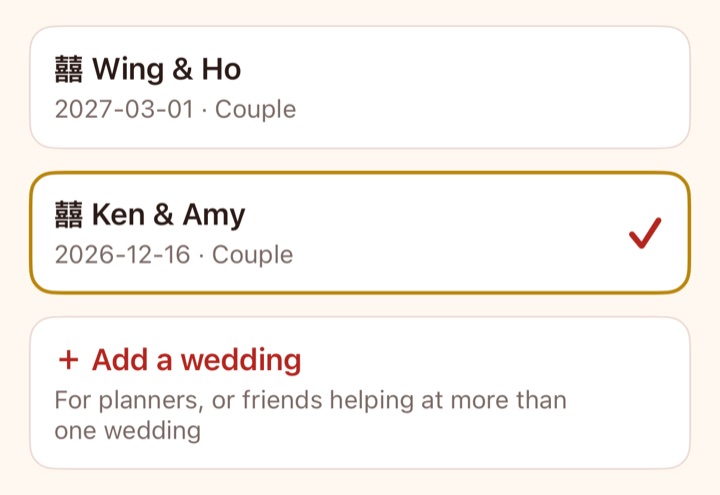
Tap the wedding’s name at the top to switch wedding, or “Add a wedding”. Handy for planners and friends helping at more than one; every wedding’s alarms still ring.
Activating the wedding
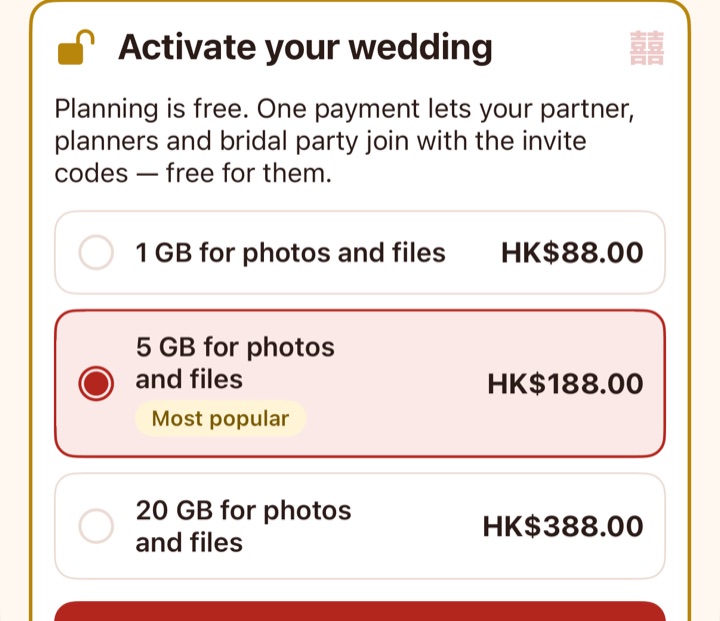
Planning is free. To invite others, the couple picks a plan: 1 GB HK$88, 5 GB HK$188 or 20 GB HK$388 — once per wedding, for 999 days and up to 50 phones.
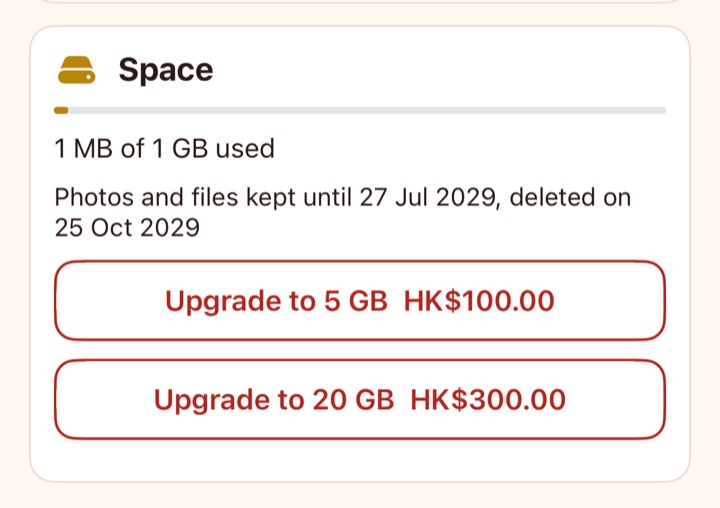
Space
How much space is used. Upgrade any time and pay only the difference. When the wedding expires it becomes read-only and files are kept 90 more days; keep them longer for HK$5 per GB per year.
11Without a connection
The run sheet, checklist, guests and album are kept on the phone, so they still work in a basement with no signal.
Offline and waiting changes
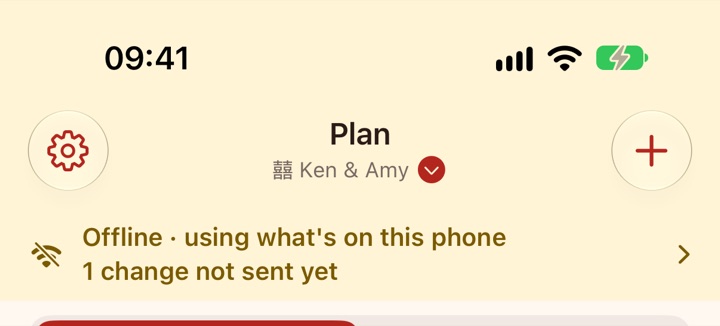
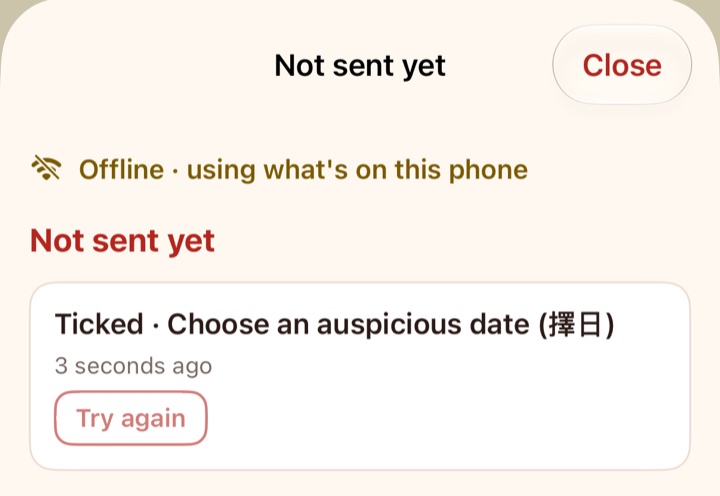
Offline, a bar says “Offline · using what’s on this phone”. Keep editing and ticking: changes queue up and are sent when you’re back (“3 changes not sent yet”). Tap the bar to see them; retry or discard any that failed.
- Creating or joining a wedding, paying, rehearsing and opening files not yet on the phone need a connection.
- If two people change the same item at once, the app tells you.